Slack Bot
Mission Control Assistant is a Slack bot that responds to direct messages and @mentions. The bot uses Slack Socket Mode, which opens a WebSocket connection so you do not expose a public webhook endpoint.
Slack app creation and installation
Before you start
- A Slack workspace where you can create apps
- An Anthropic, OpenAI, or Google Generative AI API key for the LLM provider
Create the Slack app
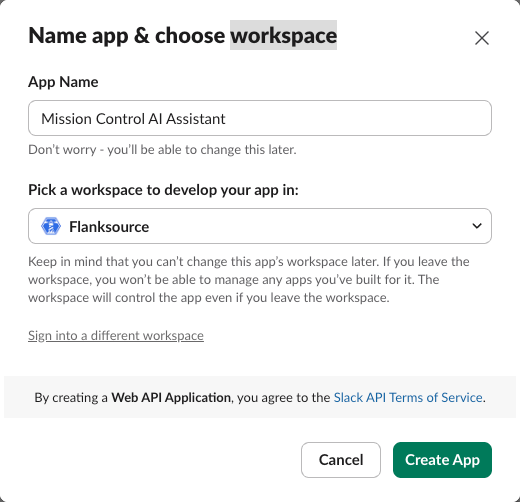
- Go to api.slack.com/apps and select Create New App.
- Choose From scratch, name the app, and select the workspace.
- Select Create App.
Enable Socket Mode
Open Settings → Socket Mode and turn on Enable Socket Mode.
You'll be prompted to generate an app-level token with access to the connections:write scope.
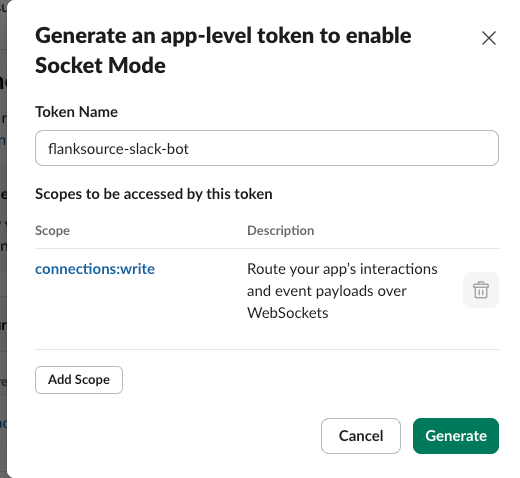
Store the token value as SLACK_APP_TOKEN env var.
Enable App Home messages
Open Features → App Home and enable these settings:
- Messages Tab
- Allow users to send Slash commands and messages from the messages tab
These settings let users send direct messages to the bot from the App Home Messages tab. Without them, Slack disables messages to the app.
Add bot token scopes
Open Features → OAuth & Permissions and add these bot token scopes:
| Scope | Description |
|---|---|
app_mentions:read | View messages that directly mention @Mission Control AI Assistant in conversations that the app is in. |
chat:write | Send messages as @Mission Control AI Assistant. |
groups:history | View messages and other content in private channels that Mission Control AI Assistant has been added to. |
im:history | View messages and other content in direct messages that Mission Control AI Assistant has been added to. |
im:read | View basic information about direct messages that Mission Control AI Assistant has been added to. |
im:write | Start direct messages with people. |
Add bot events
Open Features → Event Subscriptions, enable events, and subscribe the bot to these events:
| Event name | Description | Required scope |
|---|---|---|
app_mention | Subscribe to only the message events that mention your app or bot. | app_mentions:read |
message.im | A message was posted in a direct message channel. | im:history |
Install the app
Finally, you can go back to Features → OAuth & Permissions and select Install to Workspace.
After installation, you'll see the Bot User OAuth Token (starts with xoxb-) on that same page.
Store the token value as SLACK_BOT_TOKEN env var.
Mission Control MCP URL and token
You need the MCP URL and bearer token to connect the bot to Mission Control tools.
Get the MCP URL and token
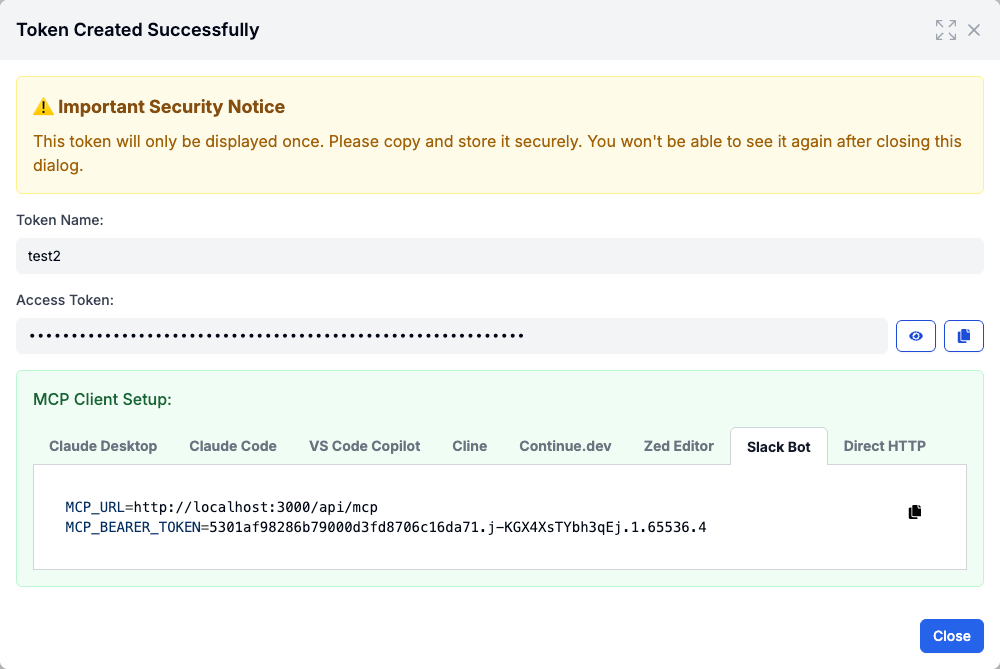
Use the Setup MCP flow to get both values.
- In Mission Control, open the user menu and select Setup MCP.
- Select Create new token.
- In the token details dialog, select Slack Bot and copy
MCP_URLandMCP_BEARER_TOKEN.
Deployment
Create the Kubernetes Secret (Helm and Flux)
Create one Secret for Slack, LLM, and MCP credentials before you deploy with Helm or Flux.
slack-bot-secret.yamlapiVersion: v1
kind: Secret
metadata:
  name: slack-bot
type: Opaque
stringData:
  SLACK_BOT_TOKEN: xoxb-your-bot-token
  SLACK_APP_TOKEN: xapp-your-app-token
  ANTHROPIC_API_KEY: sk-ant-your-api-key
  MCP_URL: https://mission-control.example.com/mcp
  MCP_BEARER_TOKEN: your-mcp-token
- kubectl Helm release
- Flux Helm release
Create Secrets
Apply the Slack bot secretskubectl apply -f slack-bot-secret.yaml
Create the values file
Create a Helm values file to set the secret name and LLM settings for the chart. Update the provider, model, and log level to match your environment.
slack-bot-values.yamlslack:
  secretName: slack-bot
llm:
  provider: anthropic
  secretName: slack-bot
  secretKey: ANTHROPIC_API_KEY
  model: claude-haiku-4-5
mcp:
  secretName: slack-bot
Add the Helm repository
Add the Flanksource Helm repository so Helm can find the Slack bot chart.
Add the Flanksource Helm repositoryhelm repo add flanksource https://flanksource.github.io/charts
Update the Helm repository
Update the Helm repository index so Helm can install the latest chart version.
Update the Helm repository indexhelm repo update flanksource
This command refreshes the flanksource repository metadata on your workstation.
Install the chart
Install the chart from the Flanksource Helm repository so Kubernetes runs the deployment with your values.
Install the Slack bot charthelm upgrade --install mission-control-slack-bot flanksource/mission-control-ai-assistant -f slack-bot-values.yaml -n mission-control --create-namespace
The flanksource/mission-control-ai-assistant chart name targets the Slack bot chart, -f loads your values file, and --create-namespace creates the namespace when it does not exist.
Create the HelmRepository
Define the Flanksource Helm repository so Flux can fetch the chart.
slack-bot-helm-repository.yamlapiVersion: source.toolkit.fluxcd.io/v1
kind: HelmRepository
metadata:
  name: flanksource
  namespace: mission-control
spec:
  interval: 10m
  url: https://flanksource.github.io/charts
Create the HelmRelease
Create a HelmRelease that points to the Slack bot chart and sets the values for your Slack and LLM credentials.
slack-bot-helm-release.yamlapiVersion: helm.toolkit.fluxcd.io/v2
kind: HelmRelease
metadata:
  name: mission-control-slack-bot
  namespace: mission-control
spec:
  interval: 10m
  chart:
    spec:
      chart: mission-control-ai-assistant
      sourceRef:
        kind: HelmRepository
        name: flanksource
        namespace: mission-control
      interval: 10m
  values:
    slack:
      secretName: slack-bot
    llm:
      provider: anthropic
      secretName: slack-bot
      secretKey: ANTHROPIC_API_KEY
      model: claude-haiku-4-5
    mcp:
      secretName: slack-bot
Add a flux Kustomization
Use a Kustomization to apply the HelmRelease and Secrets together.
kustomization.yamlapiVersion: kustomize.config.k8s.io/v1beta1
kind: Kustomization
resources:
  - slack-bot-secret.yaml
  - slack-bot-helm-repository.yaml
  - slack-bot-helm-release.yaml